Showing posts sorted by relevance for query effects loop. Sort by date Show all posts

Wednesday, June 4, 2008

It is a loopy world

Effects Loops


Subscribe to The Hit Maker


In the recording world their are many types of "loops". Their are loops of beats and sounds that we cut and paste into sequencers and such, but were not talking about those kinds of loops today. Why not take a look into the most common loop that is used in music?

I have used some type of effect loop with each song that I have ever recorded! I use them mostly in my vocal tracks, but that is because my vocals are weak at best. Fact is that these loops can be, and are, used with every type of track that you can think of, and for many of desired effects! What is an effects loop? What can they do for you? Let's dig into this weeks blog entry "It is a loopy world" and find out!

Effect loops are as varied as the types of music that they can be placed into. They can add distortion to a vocal, EQ to a guitar lead, and compression to a bass track, and this is just for starters!

When I first started recording, like many of you, I had the faithful Four Track recorder and a couple of mics. When I got my first reverb unit, I was now in the big time, at least so I thought. Problem was that I plugged my mic directly into the reverb unit, and then directly into the four track recorder. This caused a vocal that was drowning in reverb. My tracks were reverb laden, or what is known as "wet". I tried to make it sound better by lowering the "dry to wet" ratio on the reverb unit, but it still was way too thick sounding.

That is when a friend of mine introduced me to the world of effects loops. My mind was blown! Could the answer have been looking me in the face the entire time? I want to explain effects loops in two different ways, once in the four track use, and the same in Pro Tools use. This will make it easier to digest, and better to understand.

Effects loops (in a nutshell) are a second track that uses a portion or a certain amount of a track, and adds effect to only that portion. What? Look, if you have a vocal on track one, and you want to add delay to it, try using an effects loop. Here is how.

Set up to record your vocal on track one, just as you intend to do. Now, take a "effect send" or a "bus track send" to a second track. This means that you send only a portion of the vocal track and send it to the input of the effect track, which is track two. Track two is nothing but a "wet" track that is plugged into the delay. The only input that track two gets is a trickle of track one, and the output of track two is the vocal portion with a delay added to it. The beauty here is that you can add to or take away from the amount of vocal going to track two, and the amount of delay coming out of track two.

You will be able to add more or less "dry" or "clean" vocal using the track one "effect send" knob or slider, and by the track two's output knob or slider. Yet another way to vary the effect is to adjust the "dry to wet" adjustment on the delay unit itself. This set up is an effects loop, and it is a better sound, with surgical precision of the amount of overall effect that a track gets.
You can send more than one track to an effect loop track too. Imagine recording all of your instruments in a "dry" or reverbless room. It will sound good, but flat and lifeless. Now, if you set up an effects loop, with a reverb unit as the effect, you can send just the right amount of each instrument to the reverb effect loop track, and get a live feel. It will sound as if your band played at the big venue last night.

Here is a simple diagram of the effect loop with a four track set up.


Now, what about using an effect loop with a song in Pro Tools?

It is the same in theory, only the effect send and the effect tracks' volume are harder to find. The "send" part of the main (vocal) track is where it all happens, but first lets set up an effects loop in Pro Tools.


Lets say that track one is your vocal track. You have a mic plugged into the system, and track one is a mono audio track. Before you do much more, create a new (second) track. This track will be another mono track, but with a twist. Make sure that it is a auxiliary input track.
On track one, under the send section, highlight "bus 1" as a send. The slider that is "send volume" is going to be the amount of the vocal that is sent to the effect device of track two, your auxiliary track.


Now, on track two, under the (plug-in) input section, choose "bus 1". Next, were going to choose which effect we want on the vocals of our song. Lets go with a delay. Click on the "input device" and go to effects, and highlight "delay" and then choose one of the delays.

Using the several volume sliders (track ones' "dry" volume slider, bus ones' send volume slider, and track twos' output volume slider) you can dial in that perfect vocal and effect mix. This is how the pros do it, so now you can add one or more tracks to the effect loops that you create, and get professional results!


I have a great book that covers this all, and it is titled "PRO TOOLS for Mac and Windows" ,by Steven Roback, and I simply must recommend that you buy this book. Click on the link to see it and purchase it, as it will make your recording easier and your sound professional too.

Wednesday, December 9, 2009

Setting up an effects loop in Pro Tools 8.


I am constantly looking at what people are actually searching for as they stumble across the Home Recording Weekly blog. Today's topic is from a recent search on the topic of how to create effect loops in Pro Tools 8. I have quickly wrote about this very thing in the past, but I have not gone into any great depth on this awesome topic. So, lets do this!

In order to supply you all with some images, I chose to create my own quick and simple effects loop. To start I opened up a new session in Pro Tools 8. Next, I created three tracks, but all of a different type.

The three tracks that I created are a stereo audio track, a midi track, and a stereo auxiliary (aux) track.

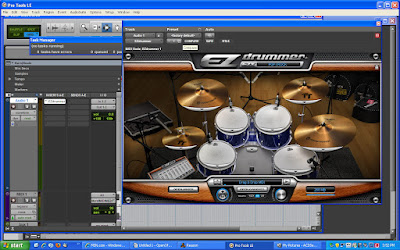
The audio track is for your sound source. If you are recording a guitar, a bass, or a microphone signal like vocals, then you will need an “audio track”. For this example, though, I am putting Toontrack EZ Drummer 2.0 on my audio track. I will be adding a room reverb to the drums, via an effects loop.

The reason why I created a midi track is that I need to place to place the midi information, where it can be edited to precision, and then trigger the Toontrack EZ Drummer 2.0 to sound. There is a new track type in Pro Tools 8 called an instrument track, which is a combined midi/audio track, but I am not yet in the habit of using them.

The auxiliary track that I have created will be for placing an effect onto. I will be adding a nice room reverb to the drum track in order to give it a nice “overhead” microphone sound. Toontrack EZ Drummer 2.0 has a mixer section included just for adding an overhead microphone, but I want to do a tutorial today, so I will be doing it this way.

When thinking about effect loops, the main point to think about is that the drums will not be 100 percent effected by the reverb, or “wet”. I will not be taking the outputs from the drums and running them directly into the reverb, and then to a stereo track. I, instead, only wish to effect a percentage of the drum signal. Hence the tutorial on “effect loops”.

Below is image number one. It shows the audio track on top, and Toontrack EZ Drummer 2.0 as the insert on the track.

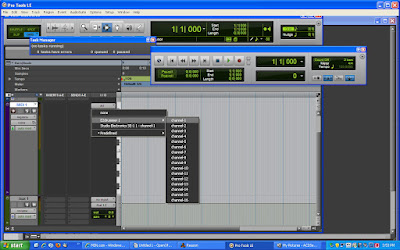
The second image is below this paragraph, and it is of the midi track. Notice that I have changed the tracks output to the correct output for the track, or as Toontrack EZ Drummer 2.0; channel one.

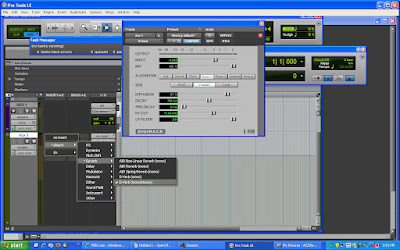
The image below shows the room reverb being selected and added on to the auxiliary track. You must put the wanted effect on to an auxiliary track, but we are not done yet. We still need to assign some audio signal into the reverb, which we will do next.


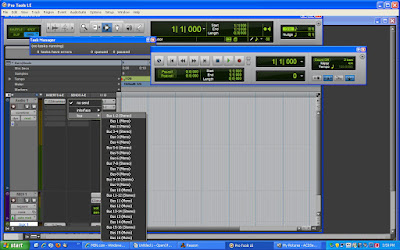
Next I needed to place a “send” signal from the audio track, to the reverb track. I selected “bus 1 and 2” as the way in which to create my stereo effects loop. This “stereo bus” will take a percentage of our audio from the drum track (audio track) and send it to the reverb (aux) track. We will be able to dial in the exact amount (percentage) of drums that are being sent to the reverb track using the “send” volume (amount) slider.


When we start working the effects into the finished song, we will also be able to dial in the exact amount of the “dry” drum signal, and the “wet” drum signal, as they get finalized. These will be two completely different signal paths that will eventually get laid on to just one stereo track in our finished song.


The image below is of the reverb tracks' output volume slider. I will use this, in conjunction with the “send” amount/volume slider from the audio track, in order to dial in both the amount of signal getting reverb, and also how much “reverbed signal” gets heard and/or recorded. This might sound confusing, but it is not. Think about the two sliders involved here, and just what each one is doing. One is sending drum signal to the reverb, and one is sending reverb (plus drums) to the final stereo mix.


It just makes any signal, from vocals to guitars, sound much better if you add your effects by means of effect loops. Adding an “effected” or “wet” signal to a dry signal is by far the best approach. Most of the time we do not want to send 100 percent of a signal into an effect unit/track, and then record its output. The reason is that it sounds 100 percent wet. No clarity from the original audio source will be recoverable, and it just sounds thin and weak.

To take this theory farther, we can also send more than one track to the same effect loop. Think about having six tracks of drums, via drum microphones, and each one going to the exact same effects loop. This type of loop is also known as a “bus effects loop”, and it just makes life easier as you track out a song. Having separate loops for each part of the kit would quickly get confusing, and bus effect loops will save on your computing power by shaving the amount of tracks that you might need to effect as many separate tracks.

Have fun applying your own effect loops to your works of art. Thanks for stopping by the Home Recording Weekly Blog, and please feel free to take one second and subscribe today! Comments are always welcome too! I love to share, so send in any tips that you might have as comments, just so I can post them too! Happy music making!

Tuesday, April 28, 2009

Pro Tools sound expanding tricks!

I would like to explain the two ways that I most often use sends and retrns to add effects to multiple tracks. I am talking specifically about adding the same effect to multiple tracks. This, in this case, will be the seperate pieces that make up a set of drums, in order to make the drums sound as if they are not written with a computer, but in fact in a studio using real drums and a drummer.

The other day I found myself going through some older songs that I have recorded some time ago, using Reason and Pro Tools. Often times I work fast to get the tracks down before they are forgotten, and add the effects and critical panning later on. In these two examples, the songs were captured in this raw form, and then tweaked as I found the time.
Here, I opened up a song that was started ealier in the month. I was trying to squeeze every nuance of tone that I could get out of each note as well as adding some impact to the instruments. All that these songs needed at this point were some basic effects added using effect “send and return loops” through the use of buss tracks, and some other simple tricks that we all can easily enough perform. It all comes down to some basic routing of the tracks.

The simple efforts and ideas contained in today’s blog post are fast and easy to perform, but sound rich and professional!

First up is a cover tune. I have always wanted to try my hand at recording a song from our past that might sound cool as a modern re-make. The song that I have chosen has been locked away in my mind and reserved for this fate for several decades now.

Why has it taken so long to record it? The answer is that I didn’t want to even start this project until I was sure that it would sound different enough from the original yet also be just recognizable. I did not want to simply lay down tracks that were done decades ago. I wanted this re-make to be as modern and hip sounding as possible, yet remain memorable to the listener.

The song that I have been working on is titled “Miracles”, but it is actually copied from “You sexy thing”, which was written by Hot Chocolate lead singer Errol Brown sometime around 1975. Errol Brown was the lead singer of Hot Chocolate, and they recorded the hit in the United Kingdom.

As just as a piece of trivia for you all, this song was placed on the “B side” of the 45 rpm record because the record company was not sure of its strength as a single. Placed, instead, on the “A side” was a song named “Blue Night”. “You sexy thing” has been re-made by numerous other acts, almost since it’s’ release in 1975. This is probably due to both the killer guitar riff and the racy lyrics (racy for 1975).

I really do love the guitar riff that makes up this songs’ chorus! It is one of the most recognizable guitar parts ever written. My version of “You sexy thing” is titled “Miracles”, and it opens with this very same awesome guitar riff.

I decided that the opening riff needed to be as bold and as powerful as I could get it. I also wanted it to sound as if one band could play the song live, if needed. So, I played, doubled, tripled, and quad rippled the guitar riff using different guitar parts and guitar tones. My re-make contains verses that are purposely simple, and are basically built from two chords being plucked; string by string rather slowly. I decided to include a bridge into this fun version of a classic as well, again using only two chords. After the climatic bridge the song resolves back into that powerful and timeless guitar riff that just lives on and on.

Enough about the song itself; let me tell you what I have done in order to tune it up!

Well, for starters I like my songs to be as realistic to the listener as I can possibly get them. Let’s start with the back bone of a song, which I feel is the percussion. This songs percussion parts were recorded using Reason, all of which I programmed in note by note. This allows me to tune up each piece of the drum kit separately, as I write them. This basically means that I play with all of the settings (in Reason) such as tone, velocity, length, and volume. I do copy and paste arrangements, once a bar or two is completely written. This ensures that the song has a certain feel or continuity to it. Besides, coppying and pasting is the fastest way to write songs.

Each piece of the drum kit gets its own track once it crosses into Pro Tools. I send the kits pieces straight to the Reason patchbay, and then each patch goes out to a single track in Pro Tools. This allows me to adjust each and every nuance of each piece of the drum kit, such as volume and panning, easily and accurately. Plus, I can mute or solo each part of the drum kit too.

I can add an effect to any single piece of the drum kit but adding the effect to just that track. Also, if I decide to add any effects to several of the drum kits pieces, I can simply use an auxiliary track, for an effects “send/return” track. Each piece of the kit can be fine tuned with the exact same effect by adjusting the “busses’ send out” volume level of the separate tracks. But more on that stuff in the paragraphs that follow.
After I feel good about a drum line, and have copied and pasted together enough notes to make up a song , it is time to “make it sound real”. I like to solo the drums pieces and pan them to the left and right of center, as if the listener is actualy sitting on the drum throne. I like the hi-hat cymbals (open and closed) to be placed to my left; in the stereo sound field. I like the snare and the bass kick (or the bass drum) to be more or less in the center of the stereo field. All of this attention to detail really comes together and starts to pop when you set the toms more to the right side of the field. Setting the higher tuned drums close to center right, and the lower tuned ones more and more to the hard right seals the effect together. Cymbals get the same treatment, using a simple minds eye image of your favorite drum kit.

Placing the individual pieces in a realistic stereo sound field makes it a little bit easier to adjust the independent volume levels. This is a simple yet very cool idea, as any thing that we can do in order to make our digital drums sound “more humanistic” is a big plus. Next, if your kit is sounding way too dry, add some effects using a send/return track.

The kick drum track seems to always need some bottom end. I love a thud, followed by some deep bass, with each strike of the kick drum. A slight delay can make the kick fatter, or “thudier”, if you will. Also some slight compression can roll off the impact of the strike, and better pronounce the subtle sustain of the kicks’ note.

In the song “Miracles” I new that the kick drum needed some help. It sounded flat and lame. I decided to use two different methods of effects routing in order to enhance its’ sound. First, I used an all wet path, or in line processing, in order to add a much needed delay. I used an all wet path because the signal needed it to be applied to 100 percent of its sound. In other words, I wanted to change the kick drums sound as a whole.


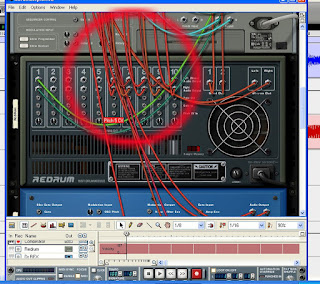
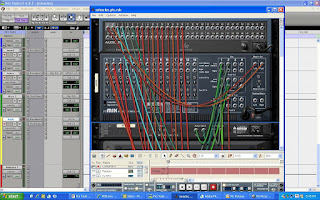
This image shows the back side (press the "tab" button) of the Redrum insert of Reason. I am showing that I patched the drum instruments pieces individally into the patchbay at the top.

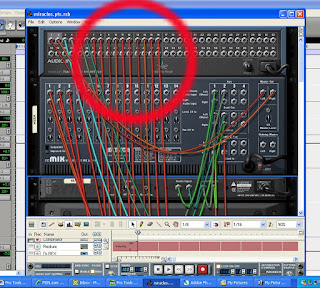
This image is of the same thing, just scrolled up to show the patch bay better. The corresponding numbers of the patchbays inserts are selected on seperate tracks in Pro Tools. The third image, below, better shows the tracks in Pro Tools.


Secondly, I used an effects loop to add some room reverb. The room reverb is also used by all of the remaining pieces of the kit in order to tie them all together, in sound. The loop is not in Pro Tools though, it is located in Reason. I used the Reason mixers send/return to buss in the reverb. I adjusted the amount of reverb coming into Pro Tools in the Reason mixer too, using the “Aux 1” post in each drum pieces channel.

Using an Auxillary track as an effects send and/or return.

Sometimes I like to create a new auxiliary track as a place for the drums’ effect loops. Make sure that you select the new auxiliary tracks’ input from a buss (say buss 2 for example) and assign the buss send on track that has the drum kits’ piece on it. Create the loop and then adjust all of the effects and effects parameters that you desire in this, the auxiliary “effect send/return loop” track. The volume slider found by clicking on the buss send assign, found in the drums piece track, will adjust how much of the drum pieces gets effected. The auxiliary tracks volume level slider adjusts how much effect will be heard.

We often use these effect send and return loop setups for a better sounding, more believable, and easier to adjust way of adding effects. This makes good sense because the kick drum will only be “effected” by a percentage of its' whole. But what does that mean?

Well, in other words, "if you add the effects on the same track as the kick drum, it will be either too wet with the effect signal or too dry, or lacking the effects signal". Using an effects send and return loop allows for only a percentage of the kick drum to be effected. What is also cool is that the dry signal (original un-effected kick drum track) can be adjusted in volume too, and mixed into the song along with the wet signal! Both the “dry" and the "wet” signal can be mixed together, using send/returns loops, and the resulting sound is better and more superior to any other way of adding effects.

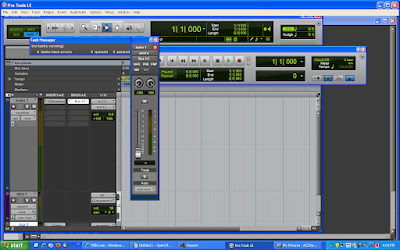
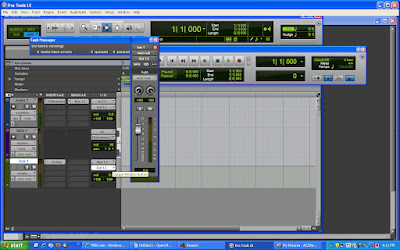
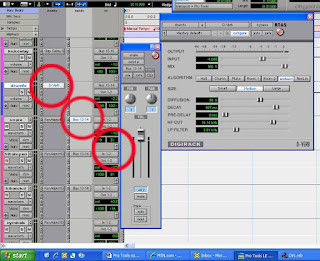
Here is an image of an Aux track being used as the effect send and return. The reverb is placed on one track, using a buss assign as its input. Each drum kit track that needs reverb uses a buss send to get the reverb, in a percentage of the reverb. Too much reverb would over power the sound of the song.


The image below better shows the loop, with the reverb dialouge box open, and the send buss tracks circled in red.

I have listened to drums from all sorts of recordings and I have decided that using an effects send/return loop is the best, easiest, and coolest way of adding effects to a drum kit. Well, the parts of the kit that need the extra adjustment that is.

I have mentioned only the kick drum up to now. That is because the kick drum usually needs a different effect than the rest of my kits components. A kick drum usually needs, for example, not only the delay mentioned above, but also some reverb too. This will be the next auxiliary send/return effects loop that we set up. Most of the kits pieces will “tap” into this reverb to some level or another.

I created a new aux tract for this reverb send/return loop. I went with a natural room sounding reverb for this because I wanted the kit to sound as if it was recorded in a studio setting.

I simply assigned a buss “send” from each piece of the drum kit that I wanted to add reverb to, being careful to assign the aux reverb tracks’ input as the same buss number (example: “buss 1”). I could now adjust the level of “send” from each of the kits’ pieces to the reverb loop. The amount of “send level” will reflect how much reverb is added to that piece of the kit. This is also called the “wet signal”.

Once again I can also adjust both the dry and wet levels together, and separately, to get a more natural sounding kit. I “sent” signal from the open hi-hat, closed hi-hat, snare, cymbals, and the kick drum to the reverb effects loop track. The output (volume) of the reverb track “send” loop reflects how much “wet” signal will be heard.

Stay tuned to the “Recording Weekly Blog”, because in the next segment I’ll go over how I used quantization to make the drum tracks feel even more human sounding. I will also touch on how I tuned up the bass tracks and how I got the guitar tracks to come alive.

Now is the time to subscribe to “Recording Weekly” by clicking on the appropriate chicklet located at the top right hand side of this blog. If that doesn’t sound appealing to you could simply add this blog to your favorites. This can be done in one simple click on the “Add to favorites” tab on you browser. Thanks for reading the Recording Weekly blog, and I hope that you enjoy the posts.

Wednesday, August 11, 2010

Samples to loops in Reason Recycle and Pro Tools 8.

I had decided to do the usual songwriting routine, only this time do it a little bit different.


Drawing inspiration from (and then developing songs from) guitar licks and/or piano parts is my norm. Recently, I decided to “draw up” a new song idea from a new well; well “so to speak”.

I thought that I might “film” each step of this process for you, but once I got started I had trouble just pausing long enough to use the restroom. I had gotten myself into “create mode”, and I was not coming out for anything. What I will be posting, however, are examples of my recent journey, just so that if anyone is interested in following along, on a like adventure, you can follow along with me. Your tips are always welcome.

The "Raw loop" in Pro Tools 8.

To begin, I pulled out some old records that I have been purchasing from second hand shops. I dusted off the decades worth of dust and then put them on the ole' turn table. In no time at all I had dropped quite a few interesting loops into Pro Tools, and then the “editing down” began. I choose two loops in particular, just because they were disco. Hey, disco is just cool in its' own fun way. These two loops that I chose are very similar. As a matter of a fact they are from the same song, but one has a more defined guitar part in it.


Next in line, I needed to chop the loops up, and figure out what sort of “time” and tempo they were in. This is done just so that adding midi instruments (or other parts on top of the loops) can be done “in tempo”; which is a lot easier to do. Writing midi is easy when you can “write” the notes, to the music, or while in time. Other “perhaps live” instruments need not worry about the time/tempo so much, but with midi I do.

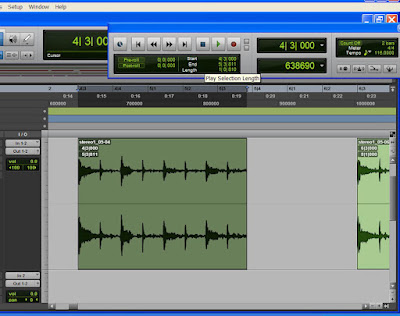
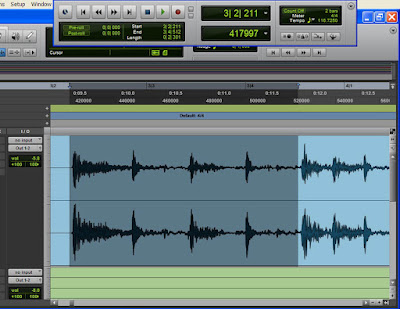
So to find the tempo information, I first copied and pasted it until I had four bars of it playing out in Pro Tools. Next, I high lit (selected) the four bars and expanded the view larger so that I could “tighten them up” to the exact start and stop points. While the bars were high lit, I used the “Identify Time” option, found under “Events” in the Pro Tools menu. This gave me the actual tempo for the loop.


Finding the tempo of the loop with "Identify Beat" command in Pro Tools.
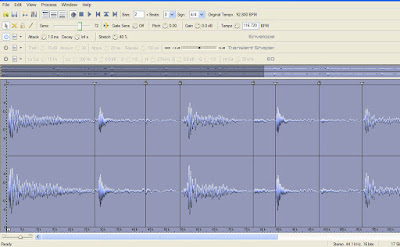
Now that I had the tempo I could proceed to the next step. This next step could have gone in several different directions. From this point I could save the loop as a “wave” file, making sure to write down the tempo, open up a new Pro Tools file (set to this new found tempo) and then open up the newly created “wave” file into it. Then I thought “I could play around with this loop even more while inside in Reason 4”. Yep, I wanted to open the loop (as a midi file) with the Dr.Rex loop player, in Reason 4. So, I first had to turn the loop into a “Rex” file. I opened up the loop in Reason Recycle, and began to work out the midi slices.


Reason Recycle for adding slices for the midi, for Reason 4.

Reason Recycle allows us to place markers on the exact place that we wish a new midi event to be. This sounds hard, but it is not hard at all. Listen to your loop and imagine where you might want the smaller parts to live on a midi keyboard. Doing this allows us to play each beat or sub beat on a midi pad or keyboard. So, I placed the markers where I wanted them (known as “slicing”), and then I entered the tempo in, and then saved all of this information into one easy-to-open and use “Rex” file. “Rex” files store slice information as well as midi information.

Of course I named, and then saved the original Pro Tools file that housed the original “loops”. I would want to keep this as a back up, just in case. Then I closed the original “loop” file, and then opened up a new song file in Pro Tools. This was done to both start fresh with just one loop in a song, and so that I could enter the new tempo in Pro Tools for my new loop. Lastly, I created some new stereo tracks, and inserted Reason 4 onto all of them as a plug in.

All of the midi instruments in Reason 4, just for this loop.
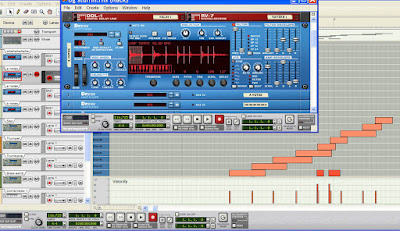


Next, I opted to open up Reason 4 and then created a DR.Rex Rex file player. I opened up the newly created “Rex” file within the Dr.Rex, and then proceed to play around some more. You see, the DR.Rex player allows us to move parts of the loop (known as “slices”) around to wherever we want them to be. We can completely re-arrange a loops' slices with ease while in Reason 4, and then we can even change their individual panning, volume, and pitch while working with the DR.Rex.

With Reason 4 comes the ability to do a million different things to our slices. For example we can add all sorts of crazy effects like delays and reverb, add some EQ, add compression, or even destruct our slices all together with distortion. We live in a great time in history my friends.

Dr.Rex and the midi rex file in the sequencer.
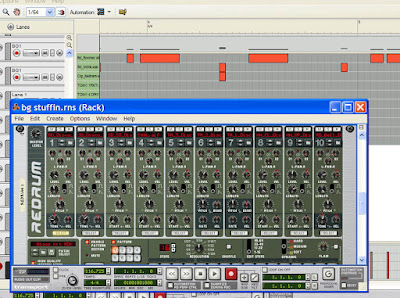
The Redrum and the sequenced drum midi.


Before I go any further, let me inject some ideas for you all. When it comes to spicing up a loop, I suggest several different approaches. First of all, I like to simply drop samples on top of the loops. I suggest quality samples or great quality loops for this. Let me take you over to LoopMasters for this step. There are many great things about Loopmasters; but three stand out. First on the list is quality, second is the amount of genres available to choose from, and third are the low, low prices. No matter what system type you use, software you own, or DAW you are dropping into, Loopmasters has your high quality samples and loops.

If you like to use Reason 4 for your midi sampling then you might want to also keep returning to Propellerheads site to see what Refill packs are available. Propellerheads Refill packs are no joke either, as the quality is up there where it should be.


If it is drums only that you are interested in spicing up, then make no mistake, Toontrack is where you need to look for samples and midi loops. Toontrack has all sorts of drum kits, from lots of popular times in history, and the loops are played by seasoned pros. Toontrack software just makes dropping beats simple and professional sounding.


Yes, I work with these three companies, somewhat, but they are the best at what they do. You want the best in your music, right? There is only one way to get the best, and that is by using the best.


So, what started out as a loop taken from an old disco record is now a “Rex” file living in a 21st century DAW.

I moved the slices of this “Rex” file all over the place, with the help of the Dr.Rex, within Reason 4, and then I went on to change some of the slices pitches and volumes until they all sounded just as I wanted them to sound. I went ahead and added some effects to some slices, just to sweeten up the loop as a whole. Then I copied and pasted this single “Rex” file, with all of the effects, into a longer loop which formed into a verse part, and next into a chorus part. Things were moving along nicely.

Since we can do so much while inside of Reason 4, I decided to sweeten up the old loop even more. Adding some “audio lip stick” was the name of the game, being very careful to not add too much of anything in particular. I did not want to make the loop sound too modern. I put some bass over the old bass parts just to bring them up to the front a little. The bass samples came from a Combinator patch that I love. I added some “boom”, via a Redrum”, to the kick drum from the loop, and some crisp snare samples were added where the vinyls' snare had degraded over the years. Now I felt ready to take this pig to the market, so to speak.

Next in the song making list was to bounce all of my Reason 4 midi tracks into Pro tools. I choose to do this for more than one “reason”, with no pun intended. First of all, I like to free up as much hard disc space as I can. Converting the Reason 4 midi data into audio data does this since I could now close Reason 4 all together, and run just Pro Tools. Secondly, all of the sounds are now in one place, or on just one screen. I should say that I like to compress and “add balls” to my bass tracks after they get bounced into Pro Tools, since that is where my plug inns for this are. Lastly, I just plain seem to work better in Pro Tools.

Just so that we are all on the same page, I like to make sure that each midi instrument in Reason 4 gets its' own track in Pro Tools. This makes for easier editing and effect placement, and easier mixing down at the end of a session.

All of the Reason midi is bounced to seperate tracks in Pro Tools.
Like I stated, once in Pro Tools I like to doctor up my Reason 4 bass tracks. I do this by running them through the Digi compressor/limiter, and then running that through IK Multimedia's Ampeg SVX bass amp plug in. I like to work my compression in Pro Tools just because I can “see” what is happening to the audio as it smashes it. Ampeg SVX adds that low end, and that “amp and cab sound” that I just adore.


That is all that I have done to get my creative juices flowing.
Here is a re-cap....


Step one... is to take a loop from an any old vinyl album and simply “sample it” into Pro Tools.
Step two...I then found the tempo of this loop with Pro Tools' “Identify beat” tool.

Step three...
I went on to save the loop as a Wave file, saved the Pro Tools song file and then closed the song file.

Step four...I opened this Wave file with Reason Recycle, and placed slice indicators where I wanted new midi slices to be.


Step five...
After making the slices I saved the loop (with the slices) as a Rex file. Rex files work with Reason 4, and all sorts of data is contained inside a Rex file. This makes opening it up with the Dr.Rex in Reason 4 a snap.


Step six...
I opened up a new Pro Tools file, set the tempo where it needed to be, and created some stereo tracks.


Step seven...
Placing Reason 4 on the stereo tracks, as an insert, was next step. After Reason 4 was running, I opened up an Dr.REx and opened up the Rex file.

Step eight...I moved stuff around endlessly, sweetened up the loop with more midi triggered samples, and then bounced each midi track to its' own track inside the new Pro Tools song file.

Step nine...Add compression and effects (like Ampeg SVX , by IK Multimedia) to any and/or all of the desired tracks.

Thanks for stopping by the Home Recording Weekly blog! Your input is always helpful, so feel free to leave your coments behind for others! Feel free to subscribe today, and get your songs entered for this months songwriting contest!

Monday, June 21, 2010

Toontrack Beatstation demo and review!


Here is a great definition taken from the Toontrack software site....


Part sound design tool and part audio engine, Beatstation brings the best aspects of musical creativity together in one EZ and powerful virtual instrument that is sure to inspire greatness in your next composition or project.

Offering drum, bass and lead instrument creation & arrangement with drag and drop simplicity, Beatstation is your "go to" instrument for quickly getting a full groove up and running in no time at all. As if that's not enough, we've also added full midi and rex file support. Couple those features with the flexibility of working in Beatstation as a stand alone instrument or an AU, RTAS, or VST plug in inside your favorite DAW and Beatstation becomes a creative musical force to be reckoned with.


Beatstation lets you combine your exisisting Toontrack EZX & SDX drum libraries together to create one of a kind drum kits and sounds. From basic musical sketches to lavish complete productions - Beatstation gives you the tools and freedom to design your own musical agenda any way you want to.”

This is a decent enough definition, but even this lacks many important details. What I am referring to here is all of the easy to add and easy use effects, all of the layering possibilities, and all of the fun that this product ships with!

I received a copy of Beatstation from Toontrack software , just to play with, and what I have found out about this clever product is that a new world has unfolded right in front of my ears!


Ever since the first video snippet on YouTube, from Toontrack, Beatstation has looked like just the exact product that I was looking for! Beatstation offers us all a way to quickly sample any audio and then incorporate that sample of audio into midi triggered pads, and then work it into our favorite midi files! The only question I had was “Where do I sign up?” I have been looking for just this exact thing for some time now. Allow me to explain.....


For some time now I have wanted to create a song that uses only a certain couple of midi loops as percussion. I wanted a way to signify the chorus from the verses by triggering different samples (that I could perhaps layer)with the same midi loop notes. Adding my own audio sample as a layered sample would be gravy, Beatstation had me at just layering Toontrack software samples with the same midi note.


I suppose that if I were to stay up for a week straight, I might come up with a way to layer my midi notes and then add audio samples to that, while using Pro Tools, but the the results would be way less that perfect. Well, with the Beatstation sampler and midi layering pads do this very thing, effortlessly, with drag and drop ease, and in no time at all! Awesome indeed!

At first I failed to realize that Beatstation is also a RTAS plug in. Yep, I rushed to play with Beatstation as a stand alone instrument app, and started to wonder how I might ever use this fun tool while writing music in my DAW. Well, now I know exactly how to do just that!


Opening Beatstation up on a stereo instrument track, in Pro Tools, allows the impossible. In seconds flat I had found the needed midi loop, and altered it to my song. What I did was layer sounds onto the desired midi pads found in Beatstation , and then added effects to each pad. Done!


As the video shows, Beatstation is a way to get the exact sounds that you hear in your head, in no time at all. The effects are wonderful in sound, and easy to adjust. The different volume amounts make it a synch to get the perfect mix of level and amount of effect “wetness” in each pad.


After I got the exact results that I was looking for, I simply bounced the loop onto a new stereo track. Then, it was onto the chorus loop. This was the same midi loop, but I needed to set it apart somehow. I did this by a combination of fast and easy layering, and then with selecting some other effects. Now I was ready to add guitars, bass, and then my vocals. My work flow is not the only thing that I have improved with Beatstation , nope, my creativeness has gone through the roof too. I would have never achieved such unique sounding loops if it were not for Beatstation .


As I learn more about adding Rex files into Beatstation , I will bring you all along with me by posting more videos. Heck, it is the least I can do!


Go here to see more great videos dealing with the new Beatstation from Toontrack software!


Before I leave you for the week, I must add a series of “thank you's”. Thanks to everyone that has entered the Home Recording Weekly songwriting contest. I have given away one prize already, and this months contest is underway. Thanks for allowing me to listen to, and enjoy your creations. There are so many great songs, it really is very hard to deem one better than another. So, I don't! I simply choose the one song that seems to be more of a well written song, verses a better recorded song, or a better singer or guitarist, or whatever! This is the only way to be fair!


Feel free to let others know that you were here by leaving any comments here, on the Home Recording Weekly blog! Thanks for stopping by!!!

Wednesday, October 28, 2009

Making drums sound more powerful, part two.

Backtracking just a little, I mentioned a few different ways in which we all like to get drums recorded. I like to either write drums with midi or to simply place (drag and drop) midi lines of drum loops into my music using a drum software like any one of Toontrack's many unique products.

This is just my work flow and you may or may not like using this same method. Let me explain why I like to use midi drums in my songs.

First, and probably most importantly, as a songwriter I like the control that midi drums give me. I can quickly switch the drum sample out with other drum samples in order to find the perfect fitting sound for each song. I can also place these switches at any point in a song, or double different parts. But more on this stuff in a few paragraphs....

Moving on, I like to edit each piece of a drum kit separately (like adding reverb on just a snare). Midi drums allow me to place each piece of the kit onto its own track. I can get confused at times if I place too much midi information onto just one midi track. I also like to play with volume and velocity as I write, and this is easy when each piece is on a separate track. This technique also allows for easy automation of all aspects of a drum kit. Effects parameters, or the effect types themselves most often need automation in order to get the most out of them. Automating effects and parameters like distortion, panning, velocity, wah, reverb, and volume is just easier when each piece of a kit is on its own track..

Lastly, midi information is just so darn easy to work with! I can easily copy and paste the midi information from one part of a song to any other part in a song in a swipe of the mouse. I can automate the pasted parts differently in order to make them sound just a little bit different too. Editing midi is a snap, well, once you get used to writing with midi anyway.

Toontracks Superior Drummer 2.0 actually took this “each piece of a kit gets its own track” technique and ran with it. Their Toontracks Superior Drummer 2.0 software allows for adding track by track effects, or the adding of effects to each piece of a drum kit separately. Toontracks Superior Drummer 2.0 ships with some awesome effects too, and these effects take up very little processing power. Look here, back to an older post, to read more about Toontracks Superior Drummer 2.0.

We all enjoy placing a snappy delay on a kick, a reverb on a snare, and effects like distortion on everything else that we can get away with. Here is one more idea that I would like to share with you all.

What I like to do is to copy a kick line, and paste it onto a new track. Now I can pick a second kick drum sample for this track and now I will have a more interesting and a way more powerful kick drum. Sometimes I will change the drum samples between the verses and the choruses, just for some dynamics. This idea works great on snares also, and please have some fun with this idea. Try adding a sub bass, or even metal strikes as doubled samples.

One thing that I try to do when writing rock and roll drum lines is to decide what a person could actually play. Layering drums and adding sub percussive beats on top of the main beat may be too much for a person to actually play out live. However, it could be done by joining other drummers to the band. If I am using two percussionists for a song idea, then I like to make sure that the midi that I write would and could be played by just two people. However, with rock music I try to keep it real. I stay away from impossible notes and over the top drum lines. Dance music is a different beast all together, and different rules might apply though.

To get a live player vibe, I like to sum the outputs of all the drum kits pieces to a stereo track. Then, I will add a send/return effects loop in order to add some room sized reverb. I like to play the wet track along with the dry track, just to make it sound authentic. Keep the reverb short and life like, as a little reverb goes a long way. Long decays on reverbs can get quite awful sounding, so listen close to what you are placing on your tracks. Make sure the delays don't get too confusing for the listener by making sure they are short too.

Another idea is to only add a send/return reverb loop track to only the hi hats tracks. That way it will sound as if a drum room was used to record the whole drum kit. With the illusion cast, you can then dazzle the listener by adding some cool delays and reverbs to the rest of the kits pieces.

Tuesday, January 5, 2010

Reason Combinator.

A recent upgrade to Propellerhead Reason (version 4) has brought on a wave of fresh and exciting things to blog about. Upgrading from Reason version 2.5, there are some new instruments, effects, mastering effects, and the Combinator. This is not an instrument all by itself, but it can become one, and it can become our new best friend.
With a new version of Reason on my machine, I opted to give the older version to a family member, in hopes of him becoming hooked...... We'll see. Also, I am thinking ahead to spending time with him, riding the learning curve that comes with writing music with midi and working within Reason. So, what a great time to start posting about Reason s devices. Here is a crude and humble beginning.

With previous editions of Reason, I seemed to always long for a few things that I could not seem to perform. I wanted a way to add “some balls”, or bottom end thump to a kick drum, for just one idea. This would involve combining several different patches and different instruments all together as one. This finished “dream sound” could be triggered by just one press of a midi keyboard key.

This is what I wanted. Most importantly, I longed for a way to write midi more simply for one instrument that triggered these layered sounds, instead of writing separate midi tracks in order to “sound” many different instruments at the same time. It sure would make life easier for me as I could also tweak the amount, or mix of each instruments output from just one place. I could also add effects to each patch, or the whole sum of the patches together as one.
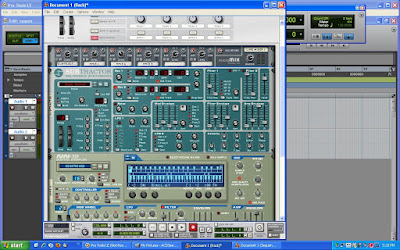
Collapsed view of Combinator and instruments inside it.
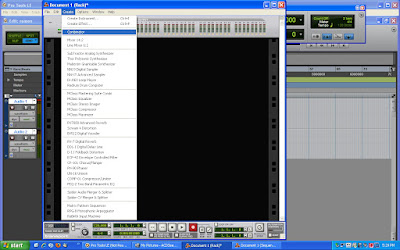
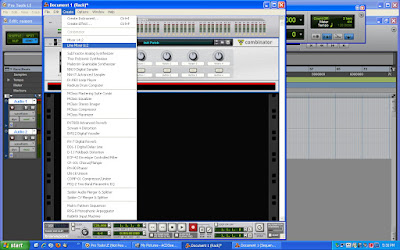
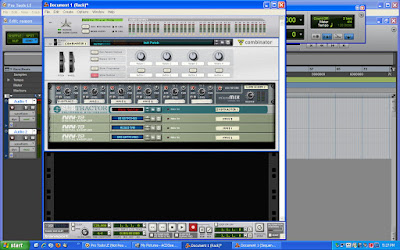
To my rescue, the Combinator, found in Reason 4, from Propellerhead. Now we can all create multiple layered instruments, make them as simple or as complex as we wish, and then save them in Reason (as a Combinator patch) for later use. After all, why go through the trouble of creating a multiple layered monster if we cant call it up later. What if this new layered sound becomes a writers “back bone sound”? Perhaps a new multiple layered drum sound will now become my signature sound that separates my sound from everyone else'......
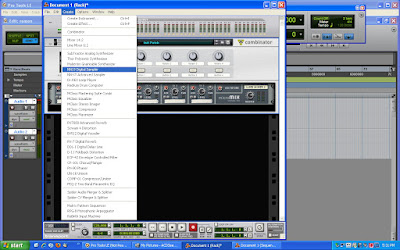
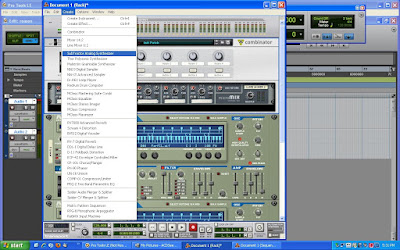
Creating your own Combinator patch is very simple. The hardest part about layering samples in the Combinator is knowing when to stop! To get going, simply start a new session in Reason. Open up, or “create” a new Combinator, by looking under the “Create” menu drop down list.

Creating the Combinator.

Next, I like to open up a mixer. I like to keep things simple, so I tend to use the 6 channel mixer most often. This makes for six “layers” of sounds, but, also the mixer is smaller in size so you don't have to scroll up and down as often in the Reason interface.

Creating the 6 line mixer.

Now you can start creating instruments, all inside the Combinator itself. I opted for two NN-19 units, and one Subtractor. This is simply just one example of what is possible, and with the Combinator the sky is the limit!

Creating the two NN19's.

Creating the Subtractor synth.

For this particular Combinator patch that I was creating I wanted to get a piano sound that also had some bass guitar in it, and also some long sustaining strings in it too. This called for two NN-19's to cover the strings and the piano, and the Subtractor supplied the bass sample.

Notice that You can control each of the three instruments overall output, quickly and easily, by adjusting the different instrument levels of the 6 channel mixer. This makes dialing in the perfect sound a breeze.

Adding effects to your new Combinator sound creation is easy too, as they become a “aux send/return loop” in the 6 channel mixer.

Combinator patch created, without reverb above, with reverb below.
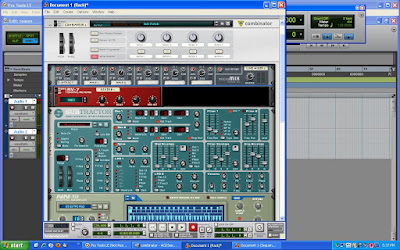

You can opt to “effect” each instrument separately, or the entire Combinator instrument as a whole. I decided to add reverb to the 6 channel mixer (as an effects loop) just so that I could add reverb to the piano only. I wanted the pianos long decay to come more to the front, and this really helped to make that happen.
Perhaps the best feature here is that we can save this new Combinator patch, name it, and re-call it later.
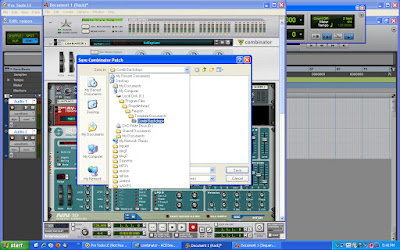
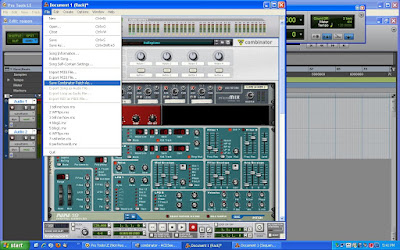
Saving the Combinator patches that you create is very easy. Look under the “File” drop down menu and select “Save Combinator patch as” and then follow along. Make sure to come up with a name that you will remember for your new creation, or make the names descriptive as you can.

Saving the new Combinator patch.

By the way, I saved my new Combinator patch in the folder titled “Combinator backdrops”. I am not too sure where they should go, but it saved it and opened it up later, so that does work.

Combinator backdrops folder.

When the time comes for you to re-open your newly created Combinator patch/instrument, let's say in a new song, the steps involved are just as simple as it was to create your new sounds. All you will need to do is to first open up a blank Combinator in any
Reason song. Next, right click on the Combinators' name (or taped on name tag) and then select “Browse patches” from the small drop down menu. Lastly, double click on the patch that you want to open, and then you are making music.

Kudos to Propellerhead for coming up with such an elegant solution to such a common problem. I would have upgraded a lot sooner had I known the ease in which all of this Combinator stuff worked. I will admit that this is not a new upgrade or version, but if you are just getting to know Reason software, then you might find this post helpful.

As always, thanks for stopping by, and make sure that you become a subscriber today! Put this blog into your favorites list, and be sure to tell a friend.
I have placed (what I feel are) some the best sites/blogs for all of us home recording nuts to visit often over to your right hand side, so please feel free to check those sites out as well.

Saturday, January 16, 2010

Pedal Power

There are a lot of different ways to get your effect pedals into your (guitar/bass/keyboard) signal path. Today I thought about explaining a few of these ways.


I'll detail some “gigging musicians” routes to take, as well as some of the other types: like for the stage, and most home recording set ups.

I would also like to list some of the pedals that I feel we should all have in our effect rigs. Weather you are at home, on stage, or in the studio, we all like to obtain that certain tone that defines who we are.

Effect pedal setups.....

Coming up through the ranks I learned a few ways that folks used to add effects to all sorts of signals. The most common method, for live shows, way the inline method. The simple method of guitar in one side of the pedal, and the amp out of the other side, seemed just fine for most. Musicians would “stomp” on their pedals in order to turn them on and/or off as they needed to. This must be the most common method used today, until you get to a certain point in fame anyway.....

Once we can afford more musical toys, ahem, gear, then we learn some other ways of switching our pedals as we need them. Think about a pedal board with as many switches on it as you might need, that runs all of our effect pedals. These “multiple effect triggering pedal boards” can turn multiple pedals on and off as we need them, and you can set up “preset patches” of pedals to be turned on and off and then dedicate a simple on and off switch to trigger them from the pedal board. These make life easier if your sound is derived from several pedals at once, and/or if every song needs a unique assortment of pedals to propagate their own tone.

Next on the list are the effect loops.

This is a great way to go for anyone that has a killer amp tone right off the get go. Perhaps all you need is a slight effect introduced into your rig. You just love the amp tone as it is, but perhaps adjusting one thing here or there is all you wish to do from song to song. The problem is that you cant seem to dial in your desired tone by using the “inline pedal method”, because each attempt leaves your tone “too effect laden”. An effect loop will give you a lot more control over just how much effect is being heard by the crowd. The only downfall that I know of, for effect loops, is that not every amp has an effect loop. Sometimes you must find that one amp that you know delivers “your dream tone” and has an effect loop.

Lastly, I should discuss A/B rigs. This is where things can get expensive.

Imagine having an amp and cab with all your favorite effects set up so that you are getting that killer distorted tone that you just love. Now imagine setting up a second array of amp, cab, and effects for a clean channel. This is a two amp system which is switched between the two with an A/B selector switch. You might wish to have both sounding at the same time too, like Andy Timmons does, each one complimenting the other.


Pedal envy......


Some home recording enthusiasts will lean towards getting, and then using, all in one pedal boards. These can be a rack unit, or even a modeling type of amp. The only things that I don't really like about going this route is that they never seem to sound authentic enough for me, and they can be troublesome to program. However, it can be cost effective for you to go with this type of system in your home studio.

Common; more individual pedals, when used correctly, can be all you will ever need
Here is some of the most often used effect pedals, that I feel everyone should at least have in their gear closet.
First of all, the stage tuner pedal. This has a bright, well illuminated display readout so we can read it from a standing position. Perhaps the most important feature here, is the true bypass feature. You don't want the crowd to hear you tuning up, or tuning to an altered tuning, after each song. These pedals take your instrument out of the loop, so to speak, and allow you to make adjustments in quiet.

Second on my short list is a good boost pedal. Basically any pedal that increases your instruments output voltage will work. These pedals do two major things. First, they increase the out put in order to make up for voltage drop along our miles and miles of cables. The second thing these pedals do is to boost the signal of your instrument in order to “ever so slightly” overload your amp. Any amp in this world sounds better with just the right amount of boost. The sound that we are talking about here is a slight warming up and note definition, right up to a true tube breakup.

Third on the list is the all powerful compressor. We all know that compressors reduce the attack, or the first “picked” part of a note. But what else are they good for? Well, these gems take the dynamics of a piece, and reduce them down to a steady pouring out of notes. The highs and lows of a progression come down and come up in volume, and just flow better. The overall sound of a mild compressor in your signal path will just add a professional quality to your sound. Think about this pedal as a smoother upper, and a cleaner upper, for your instrument.

Wah pedals are just the coolest guitar and bass pedal on the planet. Everyone loves a great “wah driven” song from time to time, so please have a wah in stages' your real estate. “If your gonna play in Cali, you gotta have a wah in the band” , sorry, could not resist myself.......

Some say that the most often missing effect pedal in everybody elses' pedal board is a volume pedal. The volume on your instrument is great for adding definition to, or taking the bite out of the output. But what if you wish to keep the exact sound of your rig the same as you get louder for the chorus, and mellow down for the verses?

Volume pedals are not expensive to purchase, but can add a sense of professionalism to your act. Volume pedals can raise and/or lower your “summed” output signal and that means adding dynamics to your gig. Building up to the chorus and then coming back down to the verse can move a crowd to “that place they are looking for”. Plus, these pedals can come in handy when an “impromptu” jam session makes itself available; as to allow for your guests to better stand out as they supply a solo or riff of their own.

The last pedal that I feel fits into this “mandatory pedal” list is an EQ pedal. Funny, I don't have one of these, but most folks do. A lot of heavy metal and some recent popular rock acts have used EQ to define their tone. Acts that tune their guitars way down or play baritone instruments add EQ quite a bit. I find that between the instruments pick ups, volume and tone knobs, the amps various settings, and the array of pedals that I use, I can obtain a good quality tone. However, I do add some additive and/or subtractive EQ to my guitar tracks as I record. Maybe I should take this good advice and add an EQ pedal to my recording effect array just to avoid this addition of an EQ later on in the session.

Personal pedals.....

Next up are the effects that define who you are.

Lets face it, some music genres call for a distinct sound. When you think about different types of music, what effects do you hear? We all can name a famous band or musician and then name the effects used to make them stand out; most often by name brands.

What tones do you need to have? What pedals do you need to have? The answers are questions that you need to ask yourself. Are you in a cover band? Do you play your original music out in clubs? Do you record at home? Do you write and play any one style of music, or do you write all types of music? These are the money questions.

If you think that you might like a mild chorus, delay, flanger, distortion, whammy, etc, then add it to your stages' real estate space. I can't tell you which of these effect pedals to purchase, nor will I tell you how to get a sound like someone else has.


Getting another musicians tone is a great place to start your quest for your own tone, and simply knowing how to get those certain tones that you heard is a great way to learn. Plus, if you are in a cover band, getting the right tones and effects is all to important. Crowds really behave differently when you can “sound just like the original”. I wish I could tell you how many times someone has made a point to let me know that they loved our cover of “that particular song”, as we sounded so darn close to the original.
Point is, you just gotta find out for yourself.
Start a weekly effect pedal trade program between your band mates, and/or your friends. Hang out at your local music store trying out every pedal they have. Research the ways in which famous musicians get that special tone that defines their sound. Trying to sound like someone else is not a “cop out”, it is very good practice!


Doing “blindfold tests” can be great fun, and an important learning tool of the trade. Put on some of your favorite songs and think about what effects you can hear. If you can, see how close you can come to getting “their sound” for yourself. As you do this, try listening closer and closer to the originals for the little things like compressors and overdrive/boost pedals. They are being used by a lot of folks!

Thanks for stopping by, and be sure to subscribe today just so you dont miss out on any reviews, news, or cool tools.

Tuesday, May 26, 2009

Finding a mixing board for your multiple input sessions.

There are many “inns and outs” when it comes to recording with a mixing board. I know, lame right?

Sometimes I look at my poor ole’ tiny M-box and feel sorry for it. Yes, it can do some very powerful stuff, but with only two simultaneous inputs it often gets used to only too a fraction of its potential. Yes, if you count there are three inns per channel, (one microphone or hi-z input, and two ¼ inch inputs), but only one input per channel can be used at the same time.

***As a note, it does not matter what sort of digital interface you are using, nor does it matter what recording software you might be running. This mixing blog post should apply to them all.

What about those of us that want to record more than one or two tracks worth of noise at the same time? Well, welcome to mixing “pre M-box or pre-digital interface style”.

Which mixing board are we talking about here? There seems to be a lot of different types of mixing boards out there to choose from. Now there are USB powered mixing boards, DSP included boards, automated boards with motorized faders, fire wire capable mixers, bus and group capable mixing boards, and heck; the list goes on and on.

Here is some information that I have learned about buying music gear. I am a big fan of buying music gear, but only buying it once. I have purchased a cheaper piece of gear than I needed and then later decided to sell it in the spirit of an upgrade. I would then repeat this process over and over as my need for bigger and better gear grew. This is where we loose money over and over again! Unless you have an antique Les Paul or a Strat in your attic, none of this stuff seems to hold a great re-sale value. Our new gear looses half of its worth as we carry it out of the store. I am writing from personal experience here, so please take the advice.

Buying what you need is paramount for your recording success. But buying a little more than you need might come in handy in the future. The idea here is to purchase a mixing board that meets your needs, but also may have a few extra bells and whistles that you might find useful when mixing your next project. Ask yourself “What do I really need?” before stepping into a high pressure sales floor can be important. Do you really need motorized faders, an alarm clock, coffee maker, and a garage door remote control all built in? Maybe you do, maybe you don’t, but knowing first is important. Retail clerks know exactly how to make us buy what we don’t need, time and time again.

This brings me to the first detail that I often consider when planning a recording project that might just have a need for a purchase of a mixing console. I will use an example project that demands more microphones than a simple M-box can simultaneously provide for. Then I will share with you the factors that might make up a list of needs to be met with a moderately priced mixing board.

Here is our pretend recording session.

Let’s just say that I have a drum kit set up in my home. I also have a bunch of microphones. I want to record a drum track into Pro Tools. I want to press record and then play along with a click track, recording the whole time through the collection of microphones.

Often times a drum kit requires many different mics placed all around (on top of, underneath, away from, and inside of it) to get a great sound. Getting each mic to represent exactly what we hear, both in terms of volume and in quality of EQ is critical, as you drummers already know.

Our new mixing board should allow us to monitor, or solo, each one of these microphones. Most supply a headphone jack or a monitor out jack for this purpose. This option is a must because we will want to apply some EQ and some effects to our drum kit. Then we will want to set each microphone’s overall volume to match the rest of the mics that will make up our mix.

It boils down to coming up with a way to “pre-mix” all of these microphones down to one stereo-pair of “outputs” (or maybe down to a pair of mono outputs) all before heading out to the digital interface.

Deciding on just how many mics you plan on using for this recording session is a major factor in determining which board might be the right fit. Finding a mixing board that allows for this very amount of inputs (or maybe supplies a tad bit more) will be important. We are not done yet, so don’t purchase it on just this factor!

The next determining factor on the list is onboard effects. Many boards now offer digital sound processors (DSP’s) built right in. DSP’s on mixing boards can offer you effects like compressors, reverbs, and delays; just to name just a few, so make sure that you find just what you need. Asking a sales person weather or not you can try or in-store demo a board out will get you closer to figuring out if you like the sounds of the effects themselves or not.

You might think about how you wish to apply these effects also, and if the board you are looking at (listening to) will work with your plan of attack. Are you wanting to apply a room reverb to the entire mix, or maybe to just the snare? Do you desire to compress the kick while putting a second effect (like a short delay) on top of it at the same time? Can the mixing board apply more than one effect at the same time? These are important questions for sure. Double checking never hurts.

Maybe you have a great sounding outboard effects unit already, and you want to add that certain effect to your drums. If this is the case then your mixing board will need to have an effects send and return loop built in. This feature may be advertised as a “bus send and return”, so make sure that you will be able to send and return your tracks to an effects unit in the way that you want to.

Bussing or grouping tracks is something different, but let’s get that figured out since I just brought it up. Mixing boards can come with a lot of different options. One option is bussing (or grouping) tracks into a sub-mix. Bussing tracks lets you send as many tracks as you wish to one track, or one stereo pair of tracks. Bussed or grouped tracks allow a person to closely adjust and set the levels of many different tracks, and then send the “pre-mixed” group to one or two tracks. Now their levels can be turned up or down with the ease of just one or two sliders, instead of moving an array of sliders either up or down each time you hear the need. The beauty is that these “sub mixed” tracks will remain perfectly in volume relationship with one another. They were fine tuned against each other first, and then they were set. From that point on only the “bussed or grouped volume” should be changed up or down.

Drums are the most often bussed or grouped instruments. Back up vocals are right behind drums on the list. A lot of touring bands use mixing consoles that have this feature. This allows the mixing engineers to “set it and forget it”.

If you think about this buss and/or group mixing concept, you will see that it is just like what we are doing with our drum kit and the microphones. We sub-mix or pre-mix the different levels first, and then send them to the digital interface. If our digital interface was a mixer instead then we would be buss mixing, or group mixing. Do you need this option in our case? No, we don’t, but now you understand what this option is for and what it does for us.

Powered mixers are mixers that supply high output to the outs, or “the mains”. These are used mostly by “gigging” bands, perhaps some spoken word shows, and most acoustic performances. These mixers are designed to go directly to speakers, and are not what we are looking for here. These do mix many tracks down to a stereo signal, and each track can certainly be heard, but rather loudly.

Well all that is left is to recommend some mixing boards….. Without knowing what you are mixing, and what options you might need, I can only get you close.

Here are some of the more popular mini mixers that wont set you back too far.…

Alesis Multi mix 8 , Mackie 1604 VLZ PRO , Peavey PV14
Behringer “Xenyx” , Tapco , Yamaha ,
Yamaha MG166CX USB

I really do hope you found this informative. Please take just a second and tell a friend about this blog. If you have not subscribed yet, now is the time. I don’t want you getting lost and then missing out on any of the upcoming posts! Comments are always welcome!